Hello fellow Office user! Remember the good old days of Windows XP and Microsoft Office 2003? Back then, the usual routine of handling word documents, PowerPoint presentations, and CSV reports was very inefficient and hard to track.
Collaboration and real time document management was considered theoretically impossible and enterprises had to spend a lot of time, effort, and man hours in creating and managing office documents.
Software improvement and technology has completely changed all this. Businesses or enterprises these days are more dependent on cloud office suites for managing document or spreadsheets, largely because of two reasons:
1.A cloud based office suite is completely flexible in terms of sharing and management: You don’t have to worry about storage and neither you have to worry about loss of data. All the documents are stored in your web account and can be accessed from any computer or mobile device, as long as it is connected to the Internet.
2.The communication barrier is largely reduced, thanks to the built in sharing and collaborative features: No back and forth emailing, no attachment handling, just a few clicks and your document can be shared with a group of people or collaborators.
What else? Of course...Emergencies happen too! For example you have a meeting and you can't get in person, but you have some internet access. Well, you can still use Office to be an active part of it.
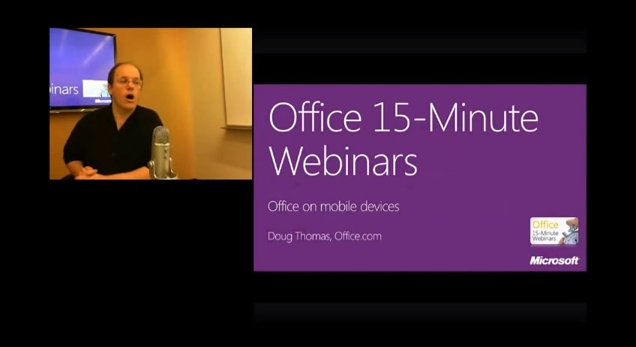
Today we'll show you on this webinar - broadcast how to present and share your docs from a coffee shop when you can't make that meeting. We'll show you tools in Office for remotely presenting a PowerPoint deck, sharing documents, and connecting with others while you're on the go.
So, what's your experience with Office? What did you find out that you like? A new tool? A shortcut? Leave a comment in the comments below. We’ll tell you our favorites too.
Don't forget to tweet this post if you like it, or follow us on twitter if you find us interesting. Also, if you need some advice we'd love to help.
Until next time peace and blessings! Thank you for your support! 😊
Store any file on your SkyDrive and it's automatically available on your PCs, Macs, and Mobile devices.
In this week's webinar, we'll show you how to work with your Office documents and share them in your own private cloud.
Get the references and links for this Office 15-Minute Webinar at http://aka.ms/sky123.
Check also our Office Webinars E-Book. Comment below your experience with Skydrive and share our post with your friends. Follow us also on Facebook and Twitter for even more.
In this week's webinar, you'll learn how to edit and view your Office documents on a Windows Phone, and how OneNote and documents stored on SkyDrive work on other mobile devices.
Doug Thomas hosts these free Office 15-Minute Webinars from the Office.com help writers. See how to watch these webinars live and participate in a Q&A session.
Get all the references and links here. Got a tip? Let us know.
In this week's webinar, author and popular blogger Jen Singer (Momma Said.net) joins us to share some of her favorite Office timesavers. Plus, you'll learn more of them from the Help writers at Office.com who use every day. Learn more about these subjects at :
This is a recording of an Office 15-Minute Webinar. Doug Thomas hosts these free how-to tidbits from the Office.com help writers. See how to watch these webinars live and participate in a Q&A session : http://aka.ms/offweb.
About half the people who tuned into today's webinar had never used SkyDrive or the Office Web Apps. So we talk about why to sign-up for this free service and how to create documents "in the cloud," share them, and even download templates as a Web App from Office.com.
This is a recording of an Office 15-Minute Webinar. Doug Thomas hosts these free how-to tidbits from the Office.com help writers. See how to watch these webinars live and participate in a Q&A session here.
Check also other Office Webinars and let us know what you think. If you have any questions or if we can do anything to help you do not hesitate to contact us anytime. If our Tutorials have helped you a little then kindly spread our voice. Thanks for your trust!
Microsoft have posted another updated on their Windows 8 development Blog.
This one has to do with Skydrive (And now OneDrive) in Windows 8. It's written by Mike Torres and Omar Shahine, Group Program Managers for SkyDrive. Microsoft are going all out with the cloud in Windows 8 and their vision is great and very aggressive.
We think what people want in personal cloud storage is a single drive that’s available across all of their devices, tailored to the experiences they’re using, providing instant, secure, and private access to their files, and sharing files and folders with people they choose.
To bring this to billions of people, our approach is to seamlessly connect the files (and behaviors) that people have today on the PC with the app and device experiences that they will use in the future. Rather than using a patchwork of services, people can use one service to connect to their files – with no compromises.
No copying files from one cloud to another just to share or collaborate. No converting files or having to switch to new apps. No searching across different storage areas to find files.
Microsoft are using their experience with storing TONS of Hotmail data (10 perabytes) and knowledge of the shared infrastructure to optimize the experience with Skydrive.
Their Post Covered the Following:
- SkyDrive Metro style app on Windows 8
- SkyDrive files integrated into Windows Explorer on the desktop, and
- The ability to fetch remote files through SkyDrive's website.
First, there's going to be a Skydrive Metro Style application in Windows 8. We'll get a chance to kick the tires, once the Developer Preview is released.
The New App is Focused on Two Things:
1. Being a fast, fluid, touch-first version of SkyDrive that makes it quick, easy, and even fun to browse and access your files.
2. Making SkyDrive available for use from any Metro style app via the file picker (open/save) and the new Share charm in Windows 8.
Skydrive will be integrated across applications in Windows 8 when they use Charms and Contracts.
For app developers, this means that, so long as your app supports opening and saving documents and photos, it will automatically support SkyDrive without any additional work.
Next, there's going to be a Skydrive Desktop Application as well.
SkyDrive Explorer
The desktop application will be available in Windows 8 and the older version of Windows as well. Of course, there are people who will use older versions of Windows for a while, so SkyDrive on the desktop will also run on Windows Vista and Windows 7.
If you want to make sure your files come with you to Windows 8 and you’re still running Windows 7, you’ll just put them in your SkyDrive folder. This makes it easier to upgrade to Windows 8 or make sure you can access your files across all of your PCs.
This next one is HUGE.
SkyDrive - The New Storage Portal
SkyDrive Fetch:
This is pretty amazing...
Microsoft is going to allow you to use your browser and reach into your computer's files from anywhere in the world.
With SkyDrive in Windows 8, you won’t just have cloud files synced to your PC. You can also turn your entire PC into your own private cloud, and use its terabytes of local storage to easily access, browse, and stream your files from anywhere, by simply fetching them from SkyDrive.
When designing the new SkyDrive, they knew not everyone would want to put 100% of their files in the cloud just yet. People are selective, and while some will move all of their files into SkyDrive, others will want to start slowly and use SkyDrive just for roaming some important documents and pictures from their Windows Phone camera roll. Knowing that most people would still have files on a remote PC that weren’t available through SkyDrive, they built a new feature that allows you to “reach across” the Internet to access any file, stream videos, or view photo albums from a remote PC that is running SkyDrive on the desktop. For any remote folder or file, you can also choose to “copy to SkyDrive,” so that you’ll always have it across your devices.
Internally they call this the “Forgot something?” feature. If you forget to put something on SkyDrive, you’ll still be able to access it on your remote PC through SkyDrive. They've done special work to enable remote streaming of video, and they’ll treat photo albums on your remote PC exactly as they do photo albums in SkyDrive, with the same beautiful full-screen viewer. Microsoft realizes this is more of an enthusiast feature, as most people won’t have an always-on PC at home, but for those who do, fetching files works like magic.
There will be extensive security around this feature as well.
Now, this effectively means, GoToMyPC as a service, might be dead.
Hilarious.
Here's a video that they put together as well.
Thanks for reading! SubscribetoourNewslettersfor more updates!
How to Dress for Success Wondering what is the appropriate business outfit for success? Here are some tips on how to dress and look professional. Weekly Promotion


.png "Microsoft Office Webinar")